
Most people don’t like change. A lot of people who have been Finale users, some for twenty-some years, don’t like having to change from Finale to something else. To be honest, when I first heard that Finale was being phased out, I was upset, and even felt betrayed. What of all those over one thousand files created over all those years? Finale took a long time to learn, I don’t want to go through that all over again, starting with another software product.
But I’m usually an early adapter. I don’t mind change as much as many of my friends. So, in typical fashion, after a day or two of grumping, I took the sweet deal Make Music was giving Finale users on Dorico Pro 5, rolled up my sleeves, and started using Dorico. And you know what? There’s a lot to like. There are many things it does better than Finale, and there are some things it does different from Finale that, once you accept them and get used to them, are at least as good, if not better. I’m going to share with you what some of those things that I like about Dorico Pro 5 are.
Think players, not instruments
First, I like thinking of my score in terms of players instead of instruments. When you set up a new score, you assign each score staff to a player, solo or section. Solo players can double on other instruments, section players can’t. So right from the start, I’m constantly reminded I’m writing for a person, or group of persons. If I’m writing for solo players, as I am when writing chamber music, I simply choose an
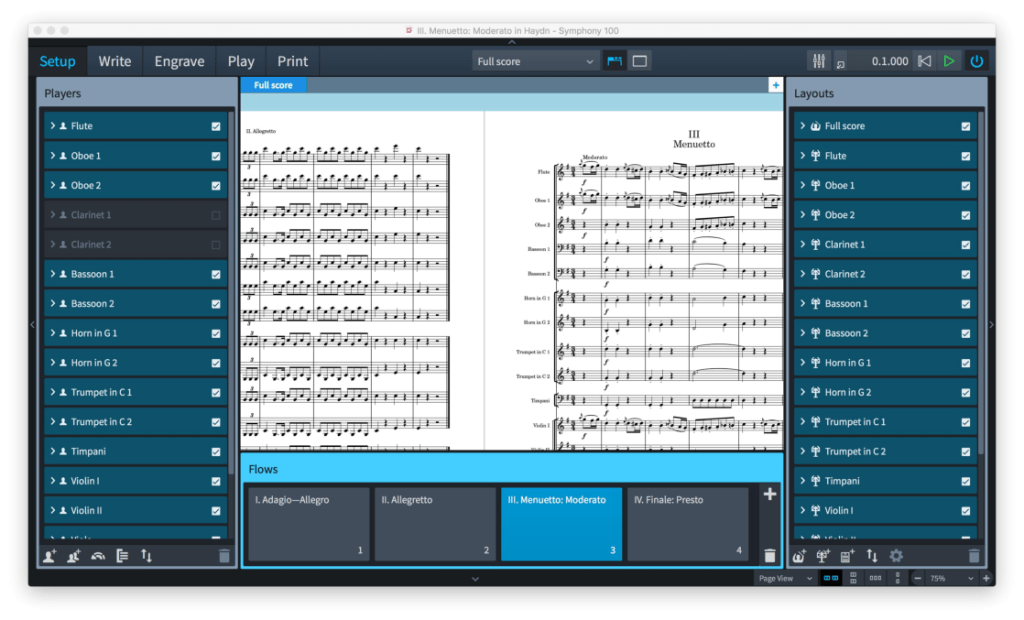
instrument for each player. Then, if I want doubling, for example the flutist to also play piccolo, I add piccolo as a new instrument for a solo player, then drag that player into the flutist row, and then that one player is assigned both flute and piccolo. When you write for piccolo in Galley View (what was scroll view in Finale), it will show as a separate staff in the score, but on the part, it will automatically indicate for the player to switch to piccolo, and the piccolo part appears as it should in the same part as the flute music.
Note entry
Once I’m entering notes into my score, I find the keyboard shortcuts allow me to enter music faster than I could in Finale. Choose a duration, and if you are entering several of the same duration, just play them on your midi keyboard and they will be written immediately. No need to re-enter a duration for each note. To change duration, use the numbers on your computer keyboard.
Edit faster
Adding, editing, or removing slurs is a snap. Make a selection that is to be slurred, press S on your computer keyboard, and the slur appears. No need to double click and drag from first to last slurred note. Then, if you copy and paste those slurred notes to another staff, and then want to edit or remove that slur, just select one of the slurs, and because they are linked from when you pasted, they’re all removed at once. Same if you drag the end or beginning of the slur to another location; all of the linked slurs adjust along with the one you’re dragging. This saves a lot of time. The same is true for dynamic markings and dynamic changes. I also like that if I enter a hair pin crescendo or decrescendo, and then enter beginning and ending dynamics, the hairpin automatically resizes to accommodate the dynamic markings; there are never any collisions.
With Dorico, you won’t get that error message telling you there are too many beats in a measure. Whenever you enter a note, if it exceeds the number of beats available in that measure, it just ties a note over into the next measure, automatically. Default rests disappear as soon as you enter a note which makes the rest unnecessary. The cursor moves along a grid which divides the measure into an adjustable duration. So, for example, the cursor (called the carat) can move ahead one quarter, eighth, or sixteenth note. Then, the arrow keys on your computer keyboard can advance or reverse the carrot by one duration for each press. Shortcut keys also move your pitch up or down by half step, whole step, or octave. There are far too many keyboard shortcuts to explain here, but Dorico provides a handy catalog of them all in a printable, trifold format. You’ll learn your most used shortcuts quickly once you start using them.
Music XML: The bridge from Finale to Dorico
One very important item for those of us migrating from Finale to Dorico Pro 5 is how smoothly the music XML export-import is. Pitches, rhythms, dynamics, slurs, and articulations have all made it safely across in six or so files I have moved over so far. Where editing was necessary, it has been with text. One issue I did have was moving a staff which contained two voices to a Dorico score that had those two voices split into two separate staves. I have found the explode function inconsistent. Often, it works perfectly, but at other instances, it either copies the exploded parts into the wrong measures, or leaves both voices in the source staff and one of the exploded voices in one of the target staves. I ended up cutting and pasting the lower voice from the source into the destination staff. So I like this feature when it works, which is most of the time, and hopefully I’ll learn why at other times it behaves badly. However, I do like that destination staves are easy to set up: just select them, and the exploded part goes right to the selected staff or staves.
Drum parts
I really like how easy drum kits are to work with. The default drum kit works well for me most of the time, but if I want to move an instrument to a different position on the staff, or add new instruments, or remove current instruments, it’s all very easily done in the drum kit editor. Drag an instrument to any line or space to move it, select a new instrument to add from the menu, and place it anywhere on the staff you like. Single line staves are also an easy option, and offer some functionality that five-line formats lack. In those cases, create the music in one-line staff format, then switch to five lines, and the features you set up in one-line format will transfer over, and be heard in playback. Playback from any position is convenient. Just select any element in your score and press P on your computer keyboard, and playback will begin from that spot.
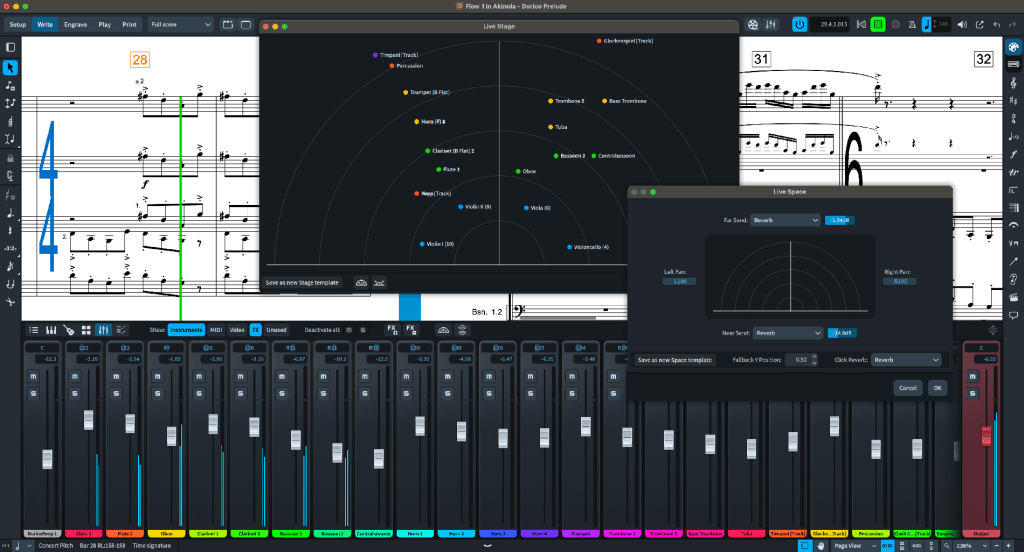
To edit how it all sounds, open the mixer window in play mode, where you’ll find faders, eq, effects, and more. Play mode is essentially a entry-level version of Cubase, with all the functionality of that sister application. You can also drag players to any position in the seating chart, and the playback will reflect where the player has been moved to: sound comes from the left or right and gets softer toward upstage, more present toward downstage. There are also modes for set-up, write, and engraving. Menus for everything possible with keyboard shortcuts is also available in convenient windows to the left and right of the main window, so if you can’t remember the shortcut, what you want is always a click or two away.
Faster note entry and editing, and a more human way of thinking about composting on a computer are reasons I encourage anyone who is struggling with replacing Finale notation software to consider Dorico. If you use it long enough to appreciate its differences, perhaps, like me, you will find that you actually like it better than dear old Finale. And luckily, we all still have another year of support for Finale, so we don’t have to panic and rush into something new all at once. The special pricing for Dorico Pro 5 offered to Finale users is a great opportunity to ease into something new. And Steinberg’s support team is excellent. They’ll be glad to guide you along, and they have made many, many videos on how to use Dorico, many of them specifically for those of us who are making the switch over from Finale.
 mister a music place